This guide walks you through connecting MetaTrader 4 / MetaTrader 5 (hereafter MT4/MT5) to TraderIsMe using the Data Sync EA, which automatically sends balance, positions, and execution history to the app. No manual CSV imports are needed — while your chart is open, the latest trading data is always reflected in the app.
What You Can Do with This Guide
- Automatically send MT4/MT5 trading data (balance, margin, execution history, open positions) to TraderIsMe
- Each time a trade occurs, it is automatically reflected in the app’s Dashboard, Calendar, and AI Analysis Reports
- The Data Sync EA is permanently free on every plan. Unlike feature EAs, it does not show any notifications during use
Requirements
- A TraderIsMe account (app.traderis.me)
- A MetaTrader 4 or MetaTrader 5 terminal (installed from your broker)
- A trading account logged in to MT (real or demo)
Step 1: Register an Account in the App and Issue an API Key
First, register the account you want to link to MT on the app side and issue an account identifier API key.
- Open “Accounts” in the sidebar and click “+ Add account” in the top right. Enter account name, account number, broker, and MT version.
- Click “Details” on the registered account to open the account detail page.
- Note the “WebRequest URL” shown at the top of the page —
https://app.traderis.me— which you will register in MT in Step 3.
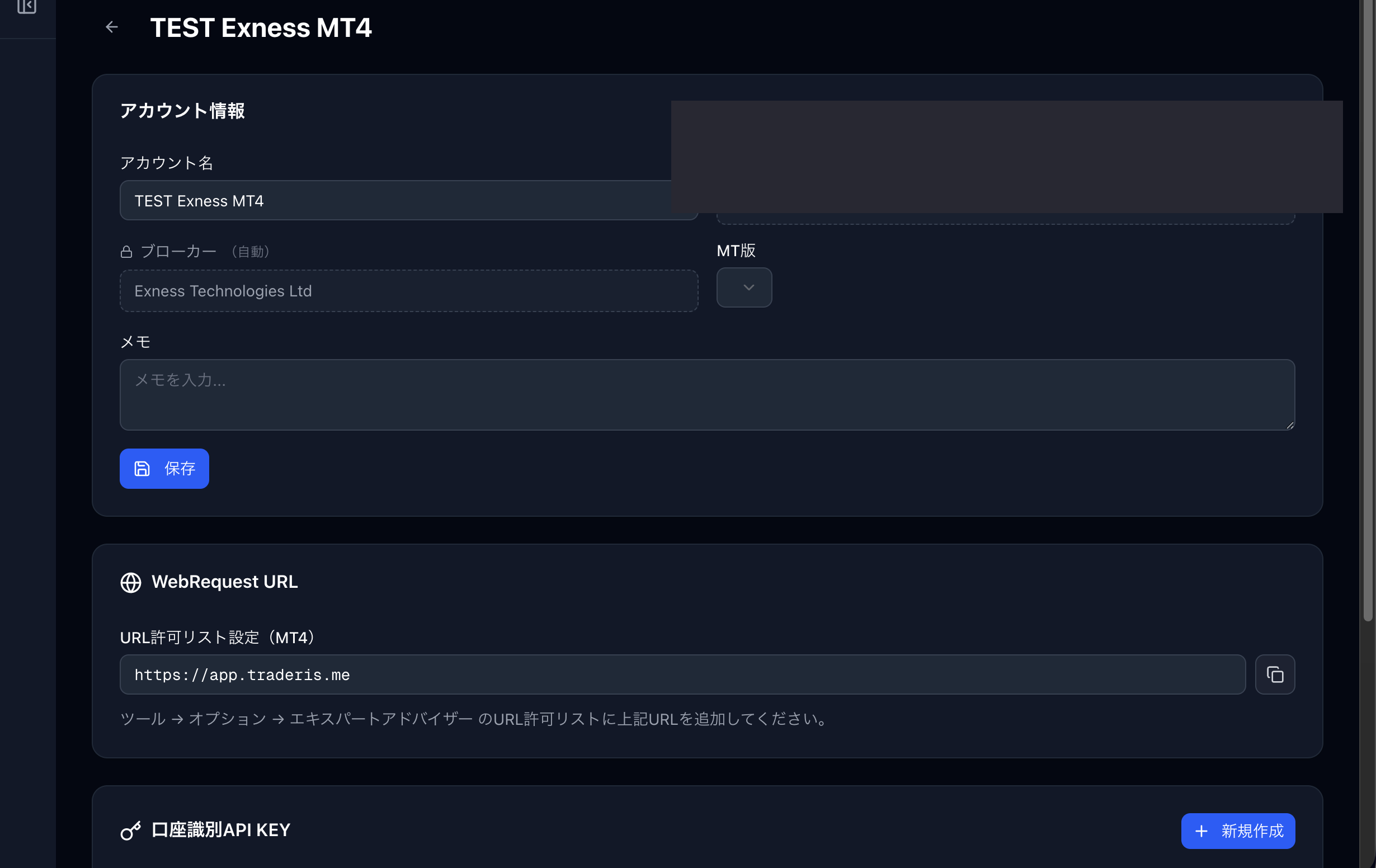
Next, in the “🔑 Account Identifier API KEY” section at the bottom of the same page, click “+ Create new” to issue an API key. Copy and store the full key shown immediately after creation (displayed only once).
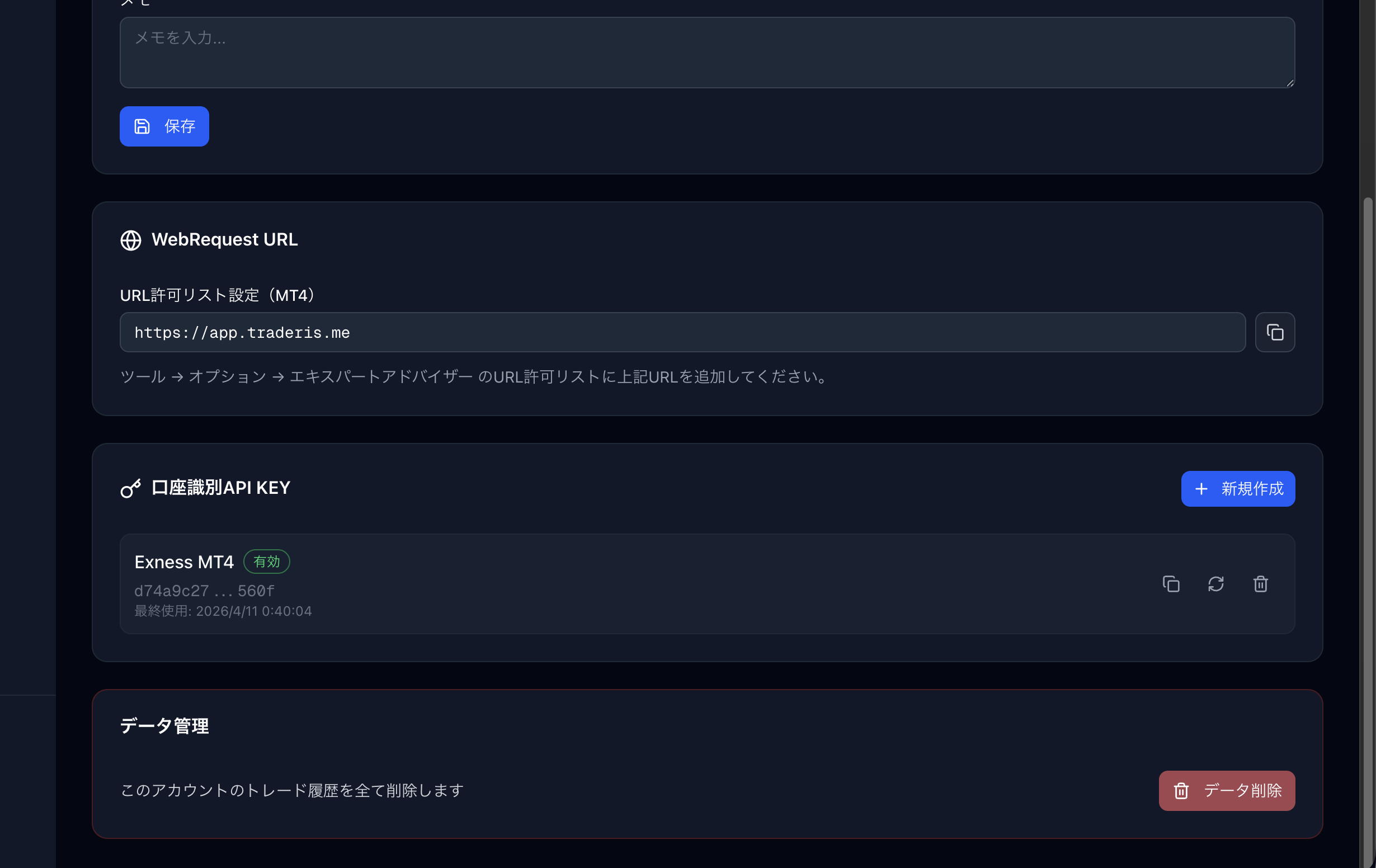
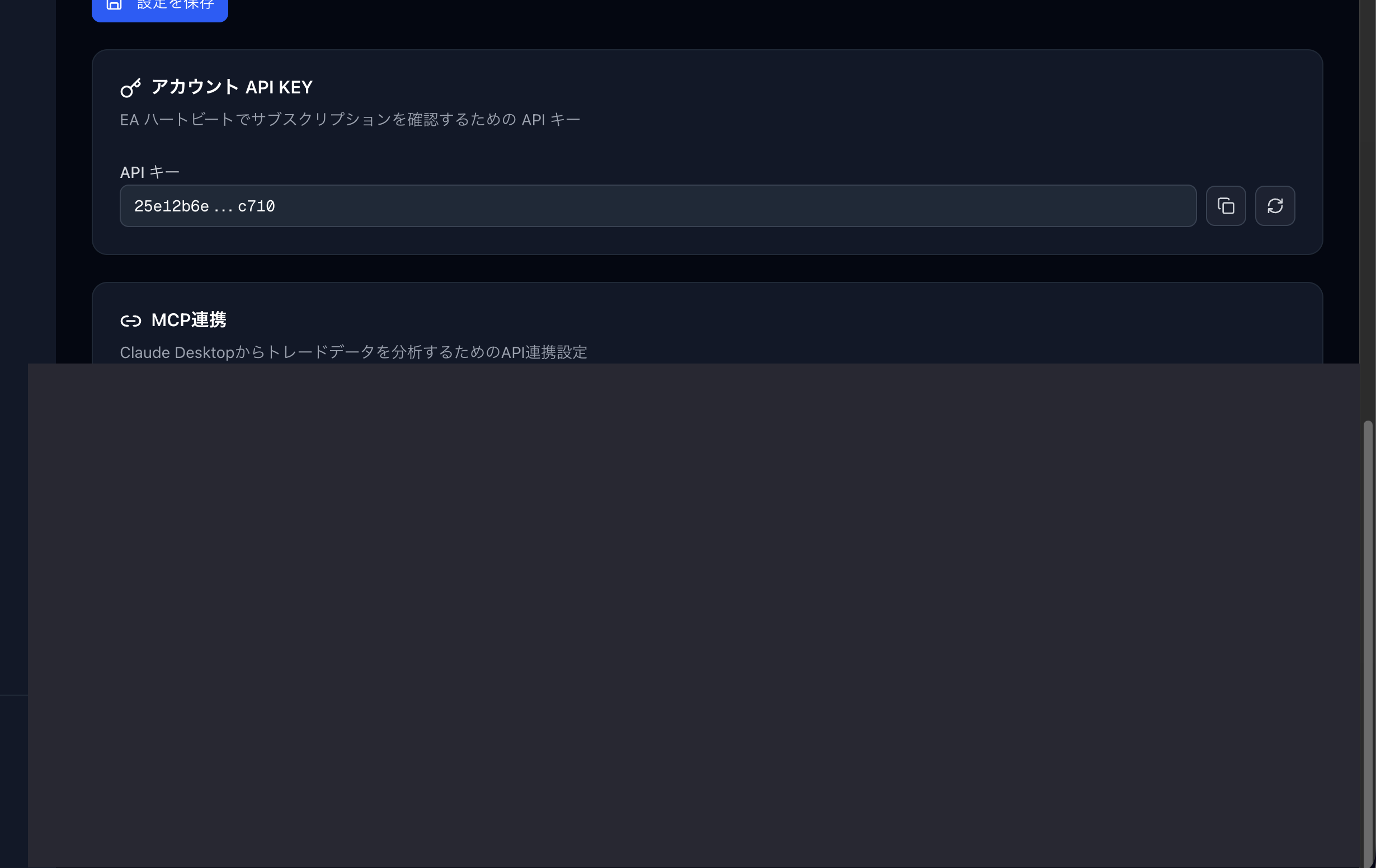
ApiKey in the Data Sync EA.If you plan to use feature EAs (Auto Lots Calculation EA, etc.) as well, open “Settings” in the left sidebar and generate an “Account API KEY” at the bottom separately. This key is not used by the Data Sync EA, so if you only plan to use data sync, you can skip this step.
Step 2: Download the Data Sync EA File
Download the EA (compiled binary) zip for your MetaTrader version from the buttons below. Free forever on every plan.
Download the MT5 version
TraderIsMe-Data-Sync-EA-MT5.zip MT5Download the MT4 version
TraderIsMe-Data-Sync-EA-MT4.zip MT4| Platform | File (after unzipping) | Destination |
|---|---|---|
| MT4 | TraderIsMe-Data-Sync-EA.ex4 | MT4 data folder MQL4/Experts/ |
| MT5 | TraderIsMe-Data-Sync-EA.ex5 | MT5 data folder MQL5/Experts/ |
To open the data folder, choose “File → Open Data Folder” from the MT menu. Unzip and copy the .ex4 / .ex5 file into MQL4/Experts/ or MQL5/Experts/, then right-click in the Navigator window and choose “Refresh” — TraderIsMe-Data-Sync-EA will appear under Expert Advisors.
Step 3: Allow the WebRequest URL in MT4/MT5
Allow the app’s domain in MT so the EA can send data to the external URL.
- Open “Tools → Options” from the MT menu.
- Select the “Expert Advisors” tab.
- Check “Allow WebRequest for listed URL” and add
https://app.traderis.meto the list below. - Click “OK” to save.
* Screenshots coming soon. We plan to add MT4 / MT5 dialog images later.
Step 4: Apply the EA to a Chart and Enter the Parameters
- Open a chart for any symbol (USDJPY or whatever — any instrument is fine).
- Drag and drop
TraderIsMe-Data-Sync-EAfrom the Navigator’s Expert Advisors list onto the chart. - In the “Common” tab of the dialog, check “Allow Algo Trading.”
- In the “Inputs” tab, enter the values per the table below and click “OK.”
- Confirm the “Algo Trading” button on the MT toolbar is green (if red, click to turn it green).
* Screenshots coming soon. MT4 / MT5 “Inputs” dialogs will be added later.
EA Input Parameters
| Parameter | Description | Required | Default |
|---|---|---|---|
ApiKey | The account identifier API key (for data sync) issued in Step 1. Must be 32 characters or longer. | Yes | empty |
The Data Sync EA has only one input parameter: ApiKey. The send interval and other internals are managed automatically by the EA and are not user-configurable.
Send Timing
- On EA startup: one send immediately after initialization
- Periodic: automatic send every 1 minute (fixed inside the EA, not configurable)
- On position change: MT4 detects open/close via
OnTick, MT5 viaOnTradeTransaction, and sends immediately
Step 5: Verify the Sync
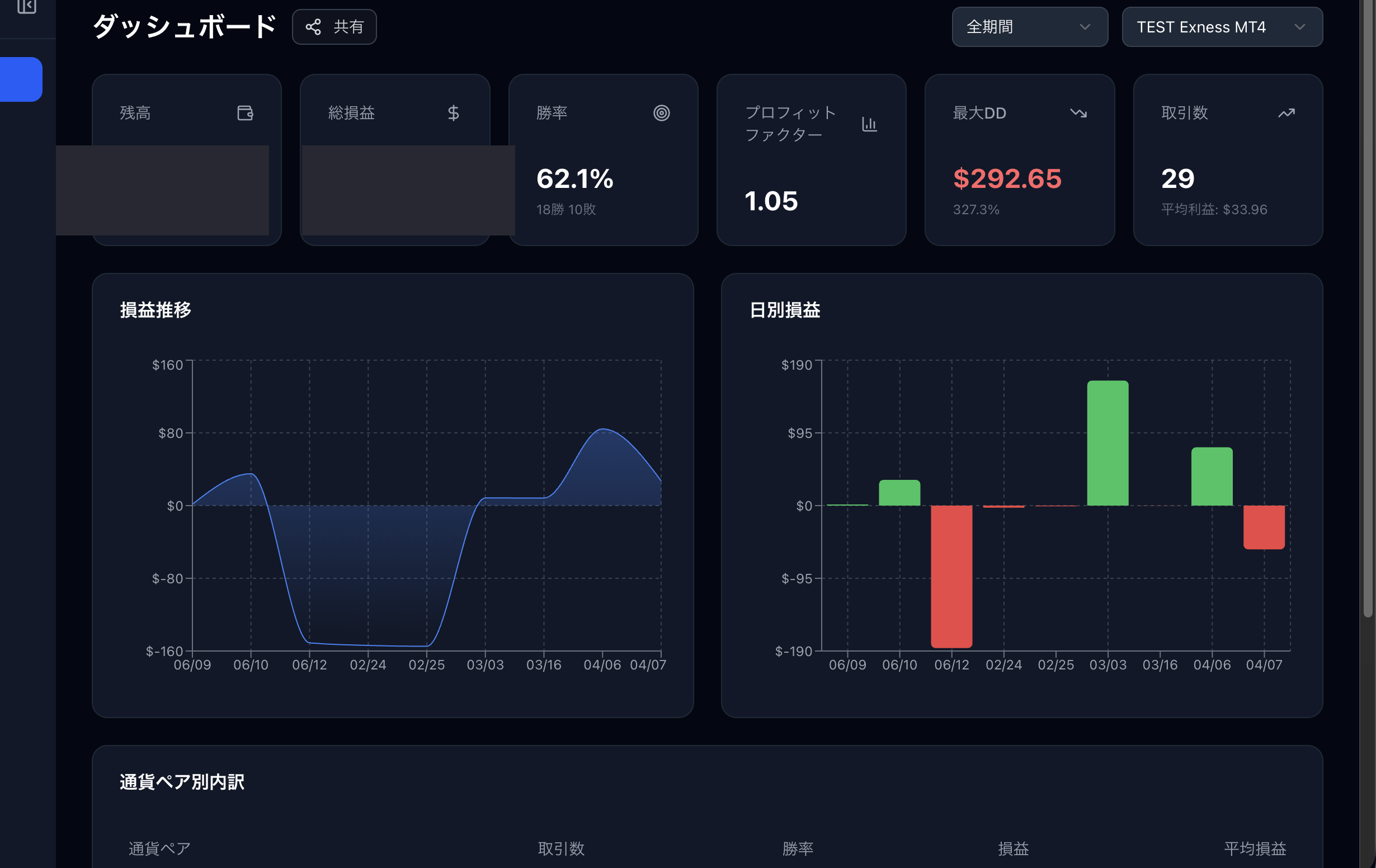
If you see a log like “[TraderIsMe] Sync OK” in the MT Experts tab, the send was successful. Open the app’s Dashboard and check that your balance and recent trades are reflected.
When Sync Does Not Work
If you see errors like these in the Experts tab, check the following:
- “API key is not set” alert →
ApiKeyis empty or shorter than 32 characters. Paste the key issued in Step 1 exactly. - WebRequest error 4060 / 4014 → The WebRequest URL allowance in Step 3 is missing. Check that
https://app.traderis.meis entered exactly, character-for-character. - HTTP 401 / 403 → The
ApiKeyvalue is wrong. Re-copy the key issued in Step 1. - HTTP 404 → An outdated EA file. Re-download the latest version.
- No logs at all → The “Algo Trading” button on the MT toolbar is red, or the smiley icon in the top-right of the chart is not smiling. Enable algo trading.
- Network disconnect → Check that the bottom-right of the MT4/MT5 status bar does not show “disconnected.”
Next Steps
If you want to bulk-import past trade history, see our CSV manual import guide (coming soon in English). Daily sync after the EA is running is fully automated.